
 Store
Store Configurator
Reply To: Remote access via MyFritz
Homepage › Forums › Generally › Remote access via MyFritz › Reply To: Remote access via MyFritz
 Admin
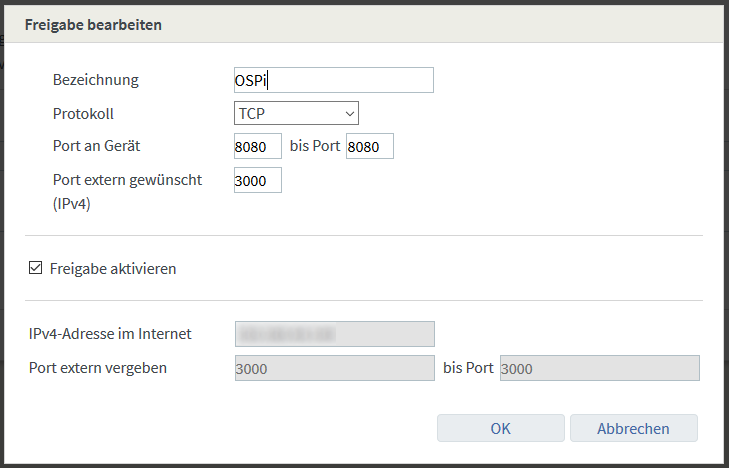
AdminThis is how port sharing works for me. However, you have to differentiate between OSPi and OpenSprinkler 3, since OSPi uses port 8080 and OpenSprinkler 3 uses port 80.
So set it up for OSPi like this:
And so for the OpenSprinkler 3:
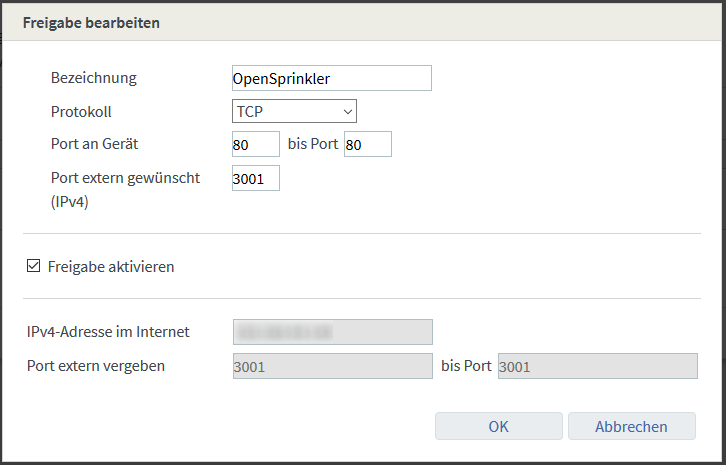
As you can see here, the OSPi can be reached under the external IP port 3000 and the OpenSprinkler 3 and the same external IP port 3001.
In this way you can successfully remotely control several OpenSprinklers from the Internet.
The option “Allow this device for Internet access via IPv4 (Exposed Host)” must NOT be activated.
Together with the MyFritz release, you can now configure it in the OpenSprinkler app.
1. In the OpenSprinkler app, select the menu item “Manage locations” at the top left and press “Add / Manually Add Device”
2. Enter a name in the “OpenSprinkler Name” field. In “OpenSprinkler IP” enter the MyFritz release, followed by a colon and the port (see above 3000 or 3001 or your chosen port)
3. Then the password. Note: If you still have “opendoor” as your password, now is a good time to change it, because from now on the entire Internet can access your OSPi or OpenSprinkler!
4. Confirm with “Save”. Complete. If the “Connect” symbol turns green, then everything works!
Note: If you are within your WLAN, the Fritz!Box usually does not allow a connection via MyFritz. Deactivate the WLAN function on your smartphone and connect via the mobile network to test this function!
By the way, sharing only works via HTTP! HTTPS only works in conjunction with an HTTP to HTTPS proxy and a corresponding HTTPS certificate (e.g. with Apache2 and OpenSSL self-signed certificate). I will deal with this topic separately when I get the chance.