
 Shop
Shop Configurator
Generally
Firmware update
You can get the current (official) OpenSprinkler firmware here:
BACKUP YOUR SETTINGS BEFORE UPDATE!
Depending on the old version, your OpenSprinkler will perform a reset and reset all settings. Therefore, you should back up your settings first. In the menu in the app or web interface there is “Export configuration” to save and “Import configuration” to import the backup again.
The default password is “opendoor” and should be changed!
Danger: If you attempt to update a new, unconfigured device or a device that has just been factory reset, the password will not be accepted.
The reason is the lack of online access to be able to execute the md5 function for the password. Use the password here
a6d82bced638de3def1e9bbb4983225c
This corresponds to the md5 hash from “opendoor”.
OSPI
An update with the OSPi is easy: Log in to your Raspberry PI, go to the “OpenSprinkler firmware” directory and start updater.sh (with ./updater.sh or sudo ./updater.sh)
OPEN SPRINKLER 3 / 3.2 AC / DC
For OpenSprinkler with Ethernet: The firmware update can ONLY be carried out via WLAN (for versions earlier than 2.2.0.105). Disconnect the Ethernet network connection by removing the Ethernet module from the cable and restart the OpenSprinkler by holding B2 and then confirming with B3
Save your settings! At the top left of the menu you can save the settings as a file using “Export configuration”!
Now download the latest firmware from the above link. The file must end with .bin. If it is a .zip, it must be unpacked first.
Click on B1 to find the IP of your OpenSprinkler. Start your web browser and enter:
http://<ipaddress>/update
Where you replace <ipaddress> with the IP.
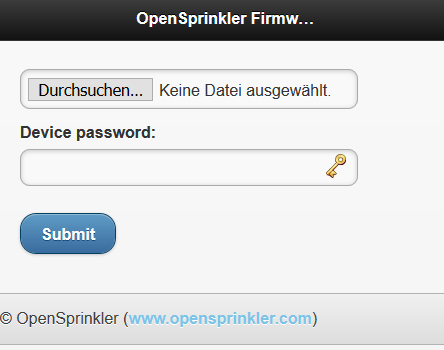
1. Click “Browse…” and select the firmware file downloaded above.
2. Enter the password for your OpenSprinklers below.
3. Click “Submit” (don’t press Return or Enter! You have to click “Submit”)
4. Watch your OpenSprinkler: After a few seconds, “Rebooting” should appear and OpenSprinkler will reboot.
5. Done. Depending on the firmware version, you may need to read the settings back. You can do this using the “Import configuration” menu at the top left.
Another tip if the OpenSprinkler no longer boots:
Factory reset: When starting the controller, press and hold B1+B2 until you see “Factory Reset” on the screen. Select “Yes” and then press and hold B3. A hardware reset is triggered and the controller returns to default settings.


Hello. He did the update. But now it says OSAP: OS_6A03E5
192.168.4.1 there. What do i have to do?
Connect your smartphone to the WiFi network OS_6A03E5 in the browser http://192.168.4.1 Enter and enter the WLAN configuration again.
Then restore the backup of the configuration.
Ok, great, it worked. Now I can log in to the app and have restored my configuration. But when I access the IP in the browser, the page remains without the option to log in. She's just black. What can I do there? I've already cleared cache. Doesn't help either. Neither does any other browser.
Today, strangely enough, it works without me changing anything.
Even if I change the weather service in the app to “DWD” (think it’s supposed to be the German Weather Service), it shows me “errors” in the weather service in the system diagnostics. Restart didn't help. In Weather Service Details, the last response says: Weather Data Request Failed. Is this a bug?
Have you also entered your location in the options? The location must be in Germany.
Yes, I have it too. Even deleted and re-added. And yes, it is in Germany.
Hello,
To update the OSPI:
How do I access the OpenSprinkler directory?
1. Log in via ssh or on the console
2.
cd OpenSprinkler-Firmware3.
sudo ./updater.shI tried to install the update today: no chance!
I have the AC 3.2 with FW 2.2.0 (1)
When I press submit, nothing happens... I also tried resetting the open sprinkler, same picture. Do you have a tip?
Hello,
just tried it – works!
Password entered correctly?
If you need help, please create a ticket in support:
https:/OpenSprinklerShop.de/support
Hello, how or where can I see the current installed firmware on OpenSprinkler?
Very simple: Menu at the top left, “About”
Thanks - found. But these are points that don't really need to be explained. Such as the settings ETo, Zimmermann, California restriction. The examples of the settings are simply missing here. So if I set that now it has these effects. It's really not clear to me how I should set up the system so that the system takes the weather data and doesn't start watering when it rains. A great function that I haven't really gotten around to yet. Thanks for the quick help.
Hello, the manual actually says it quite precisely:
https://opensprinklershop.de/wp-content/uploads/2020/04/os-manual_2.1.9-DE.pdf?v=3a52f3c22ed6
And if you want to be very precise, there is also the technical explanation (in English):
https://openthings.freshdesk.com/support/solutions/articles/5000823370-using-weather-adjustments